
 Login

Heartbeat MCP server · Claude & ChatGPT
Search clinician contacts from Claude or ChatGPT.
Connect Heartbeat to your AI assistant and search US healthcare provider contacts in plain language—right inside your chat.
Takes about 2 minutes. Works with claude.ai, Claude Desktop and chatgpt.com.
Server URL
https://heartbeat.ai/mcpTry asking
- “Show my Heartbeat account info”
- “Find cardiologists within 25 miles of Houston, TX”
Your password is only entered on heartbeat.ai. Claude and ChatGPT never see it.
What Heartbeat adds to your AI assistant
-
Search Healthcare Provider Contacts
Find matching clinicians by specialty and location, just by describing who you need.
-
View Account Credits and Subscription Plan
Check your credits and plan without leaving the chat.
-
Contact details on request
Emails and phone numbers are only added when you ask for contact details, and they use credits.
Installation guide
Heartbeat is not yet in the Claude or ChatGPT directories, so you add it manually as a custom connector. It takes about 2 minutes.
What you need
- A Heartbeat account. No account yet? Request a free account.
- Server URL:
https://heartbeat.ai/mcp
ChatGPT use chatgpt.com in a web browser
-
01
Open Plugins and add a custom MCP server
In the left sidebar click Plugins, then click Add (top right) and choose Add custom MCP server.
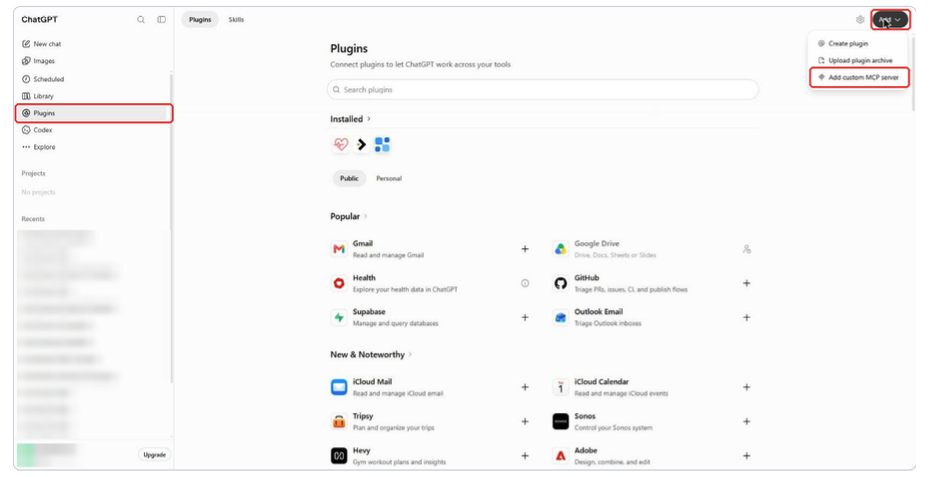
In ChatGPT, click Plugins, then Add and choose Add custom MCP server. -
02
Enter the Heartbeat details
- Name
- Heartbeat
- Description
- Healthcare provider contacts (optional)
- Server URL
https://heartbeat.ai/mcp- Authentication
- OAuth (already selected)
Leave Advanced OAuth settings as they are. Tick I understand and want to continue, then click Create as a plugin.
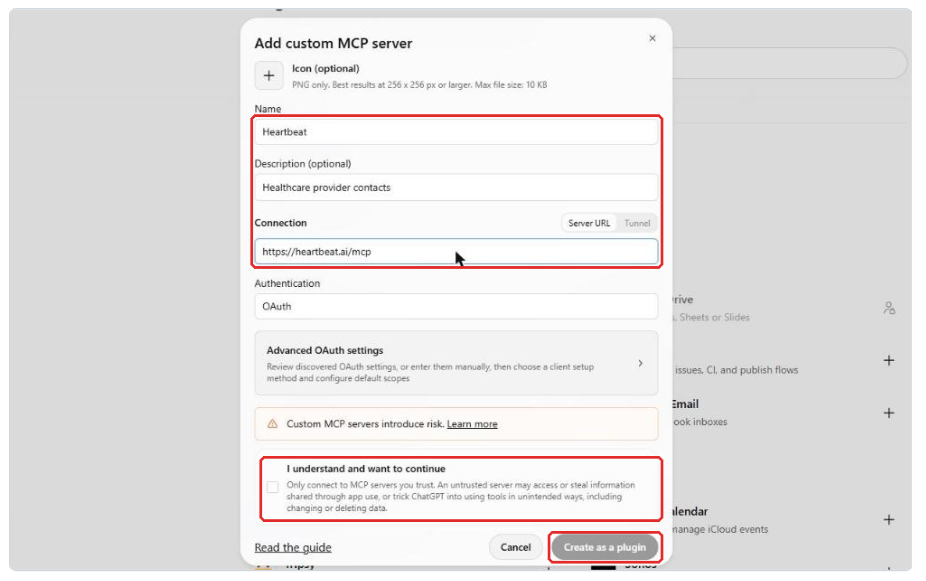
The ChatGPT custom MCP server form filled in with the Heartbeat details. -
03
No OAuth changes needed
If you open Advanced OAuth settings, ChatGPT detects everything automatically: Registration method: Client Identifier Metadata Document (CIMD). The note “DCR is unavailable” is expected. You do not need a client ID or secret.
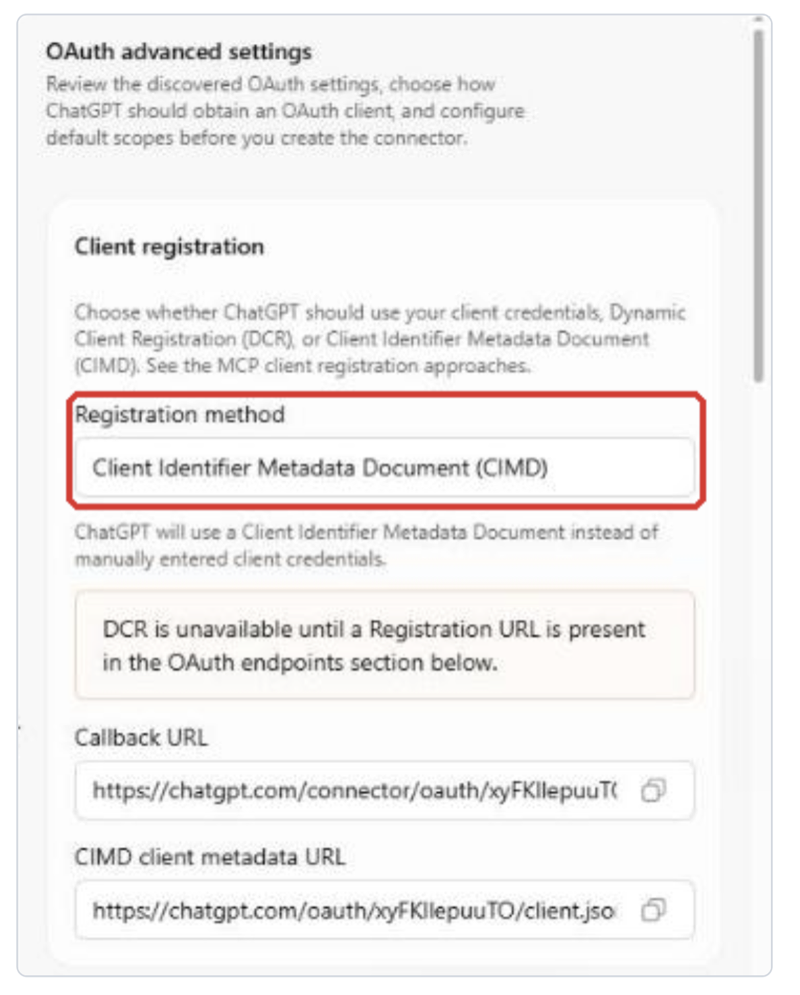
Advanced OAuth settings in ChatGPT, detected automatically. -
04
Sign in with your Heartbeat account
ChatGPT sends you to heartbeat.ai. Enter your work email and password, complete the “Verify you are human” check and click Log in. If you see an authorization screen, click Allow. You will be sent back to ChatGPT. Your password is only entered on heartbeat.ai, and ChatGPT never sees it.
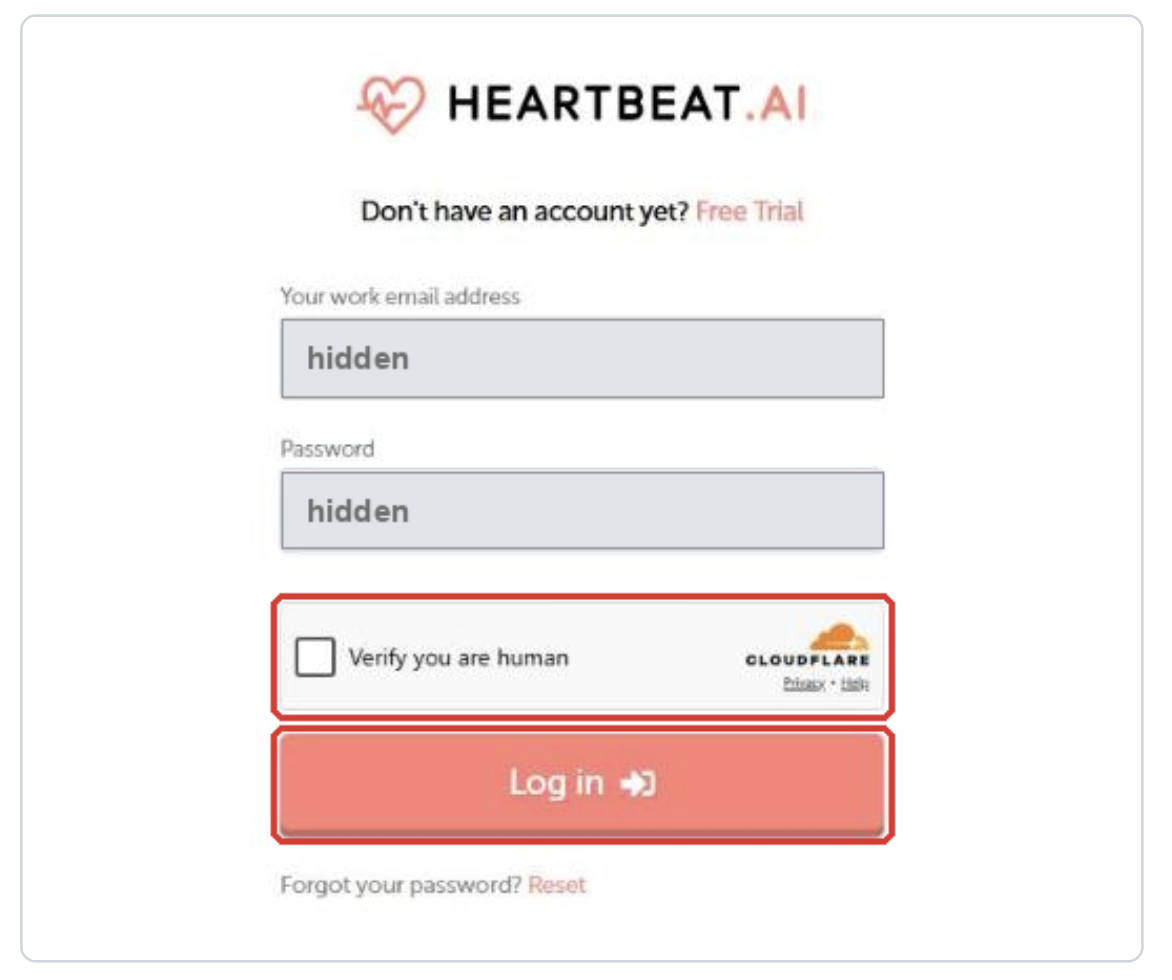
The Heartbeat sign-in page on heartbeat.ai. -
05
Check that the plugin is connected
Open Settings > Plugins > Heartbeat. You should see your Heartbeat account under Connected accounts. “Version: dev mode” and “Review status: DEVELOPMENT” are expected for a manually added plugin.
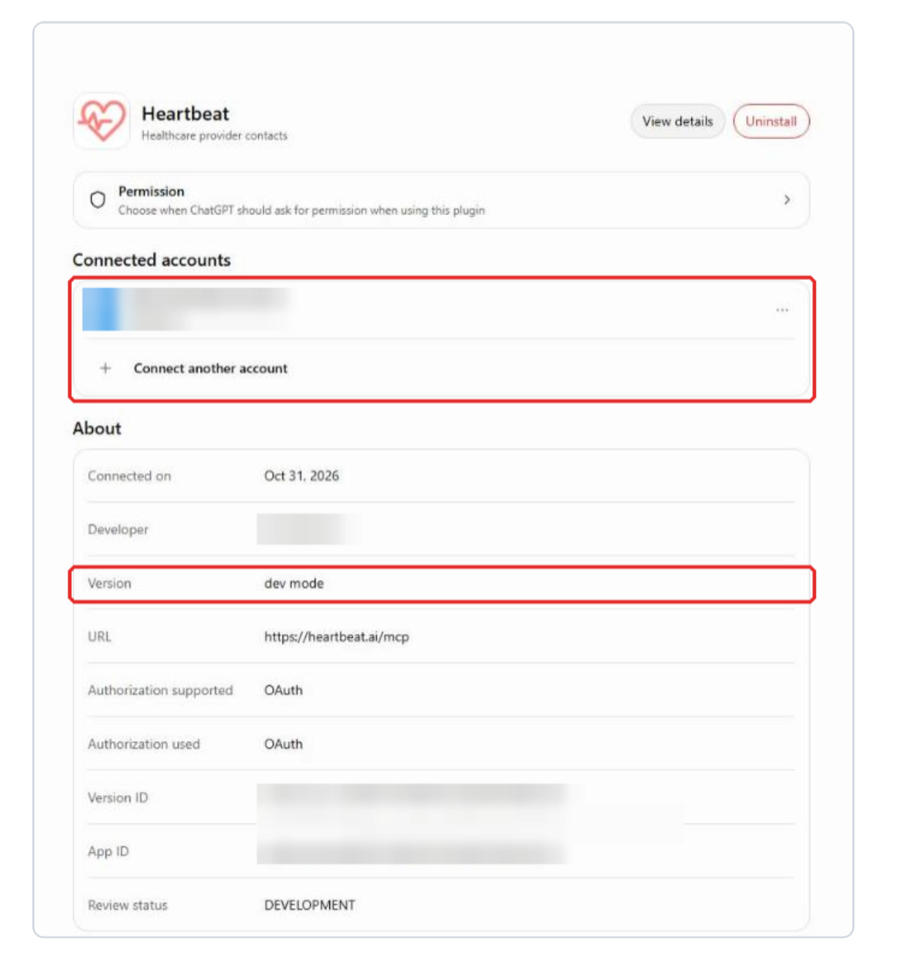
The Heartbeat plugin page in ChatGPT settings with a connected account. -
06
Use it in a chat
Start a new chat, click + and pick Heartbeat, or mention Heartbeat in your message. For example:
- “Show my Heartbeat account info”
- “Find cardiologists within 25 miles of Houston, TX”
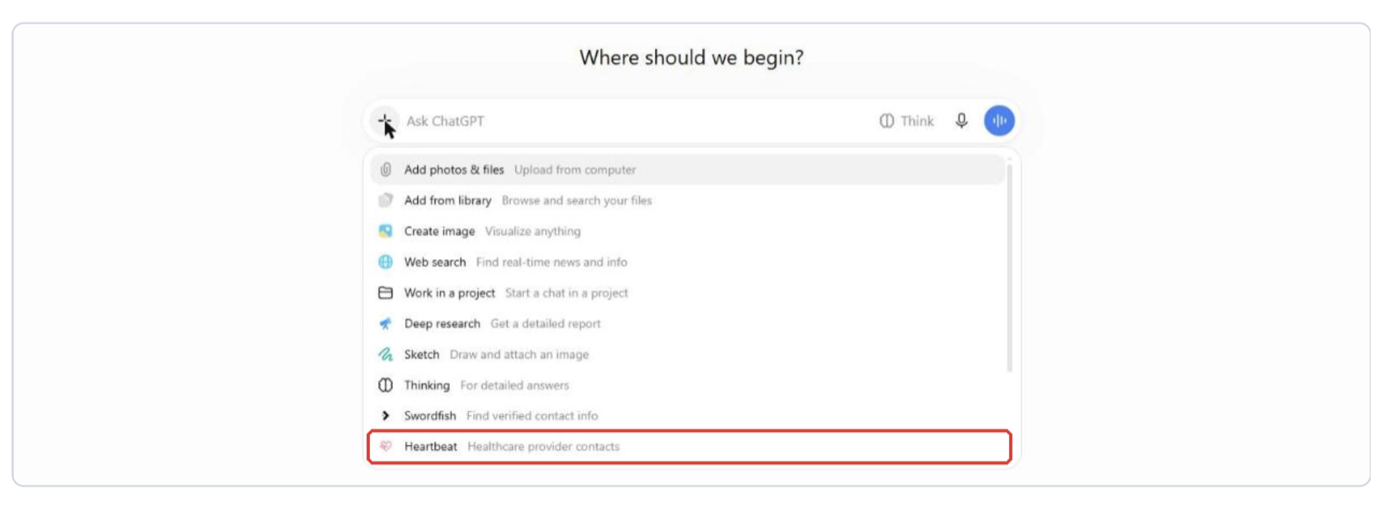
Pick Heartbeat from the + menu in a new ChatGPT chat.


Claude claude.ai or Claude Desktop
-
01
Open Customize
Sign in at claude.ai (or open the Claude desktop app) and click Customize in the left sidebar.
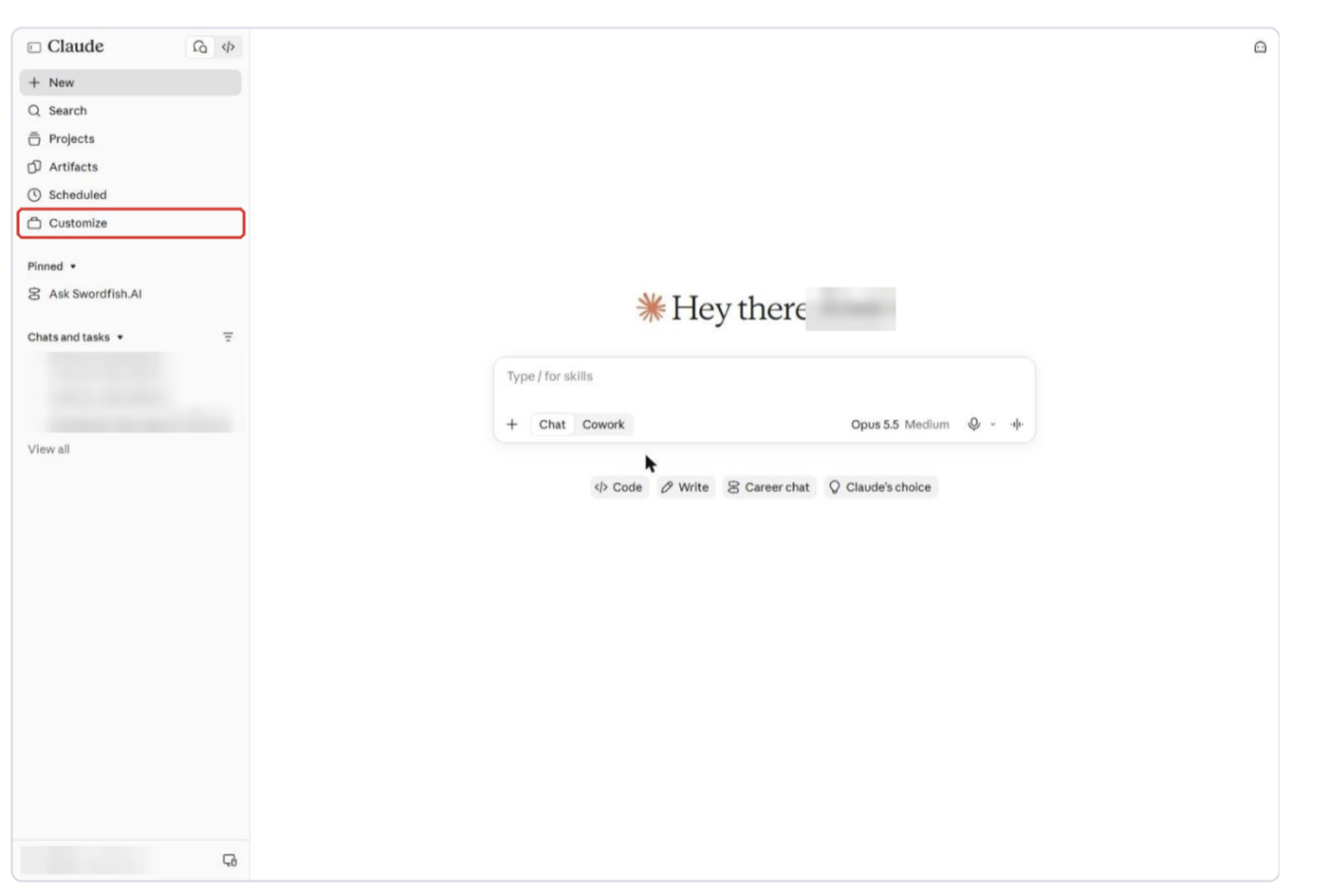
Click Customize in the Claude sidebar. -
02
Add a custom connector
Open the Connectors tab, click + Add (top right) and choose Add custom connector.
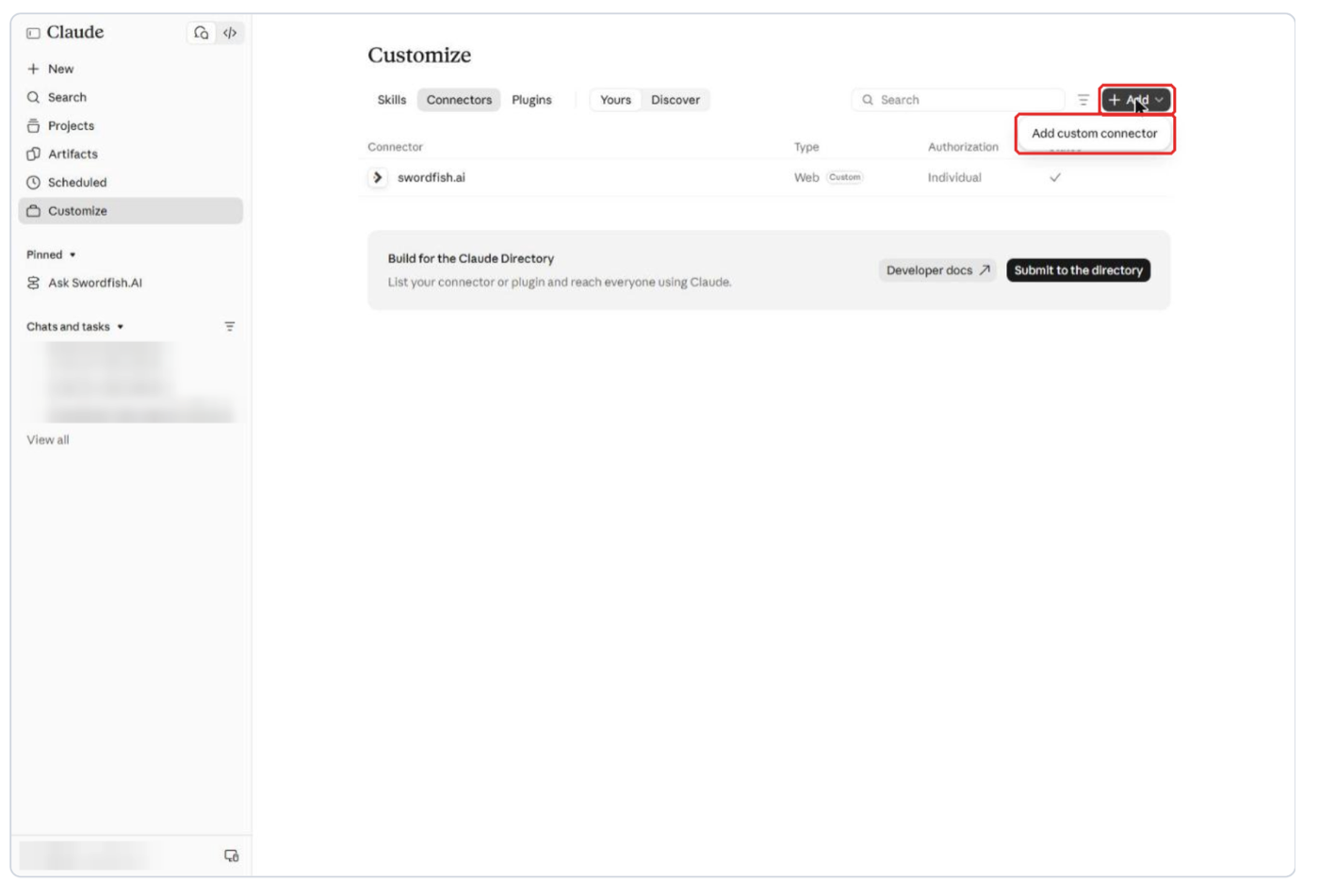
In Connectors, click + Add and choose Add custom connector. -
03
Enter the Heartbeat server details
- Name
- Heartbeat
- MCP server URL
https://heartbeat.ai/mcp
Click Continue.
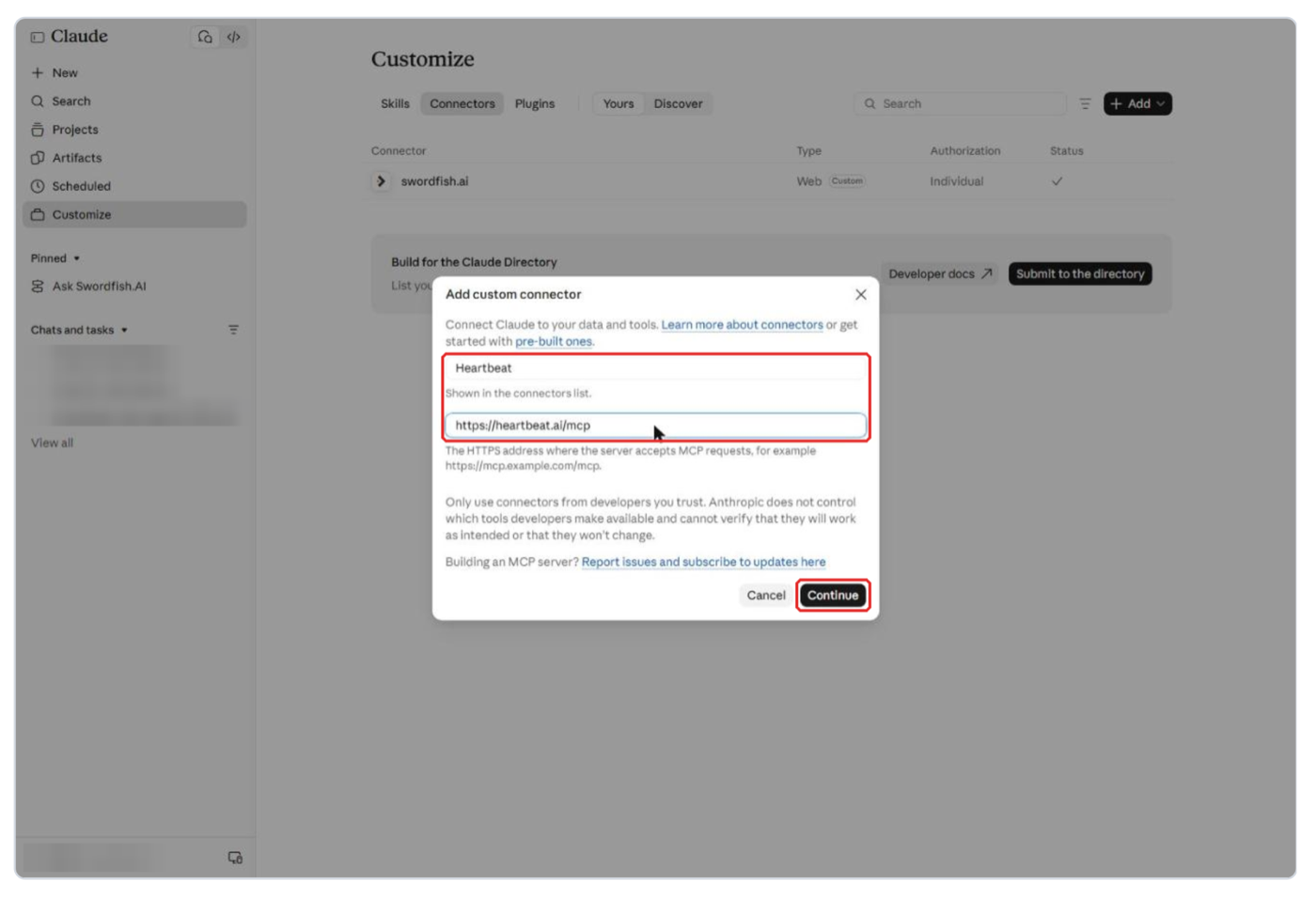
The Claude custom connector form with the Heartbeat name and MCP server URL. -
04
Keep the detected sign-in settings and click Add
Claude pre-selects the right options: Authentication Sign in now and OAuth client Use Claude’s published identity. You do not need to change anything or add request headers. Click Add.
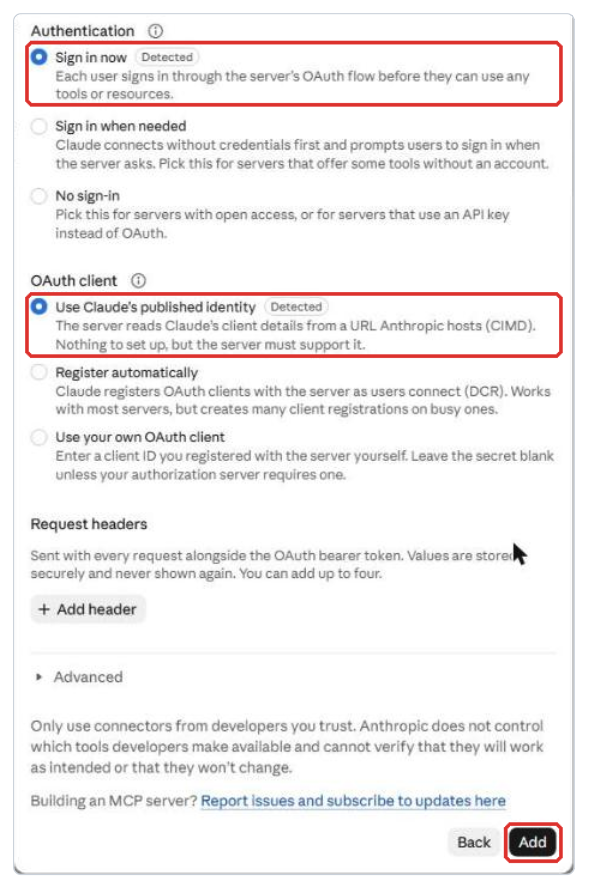
Claude’s pre-selected sign-in settings for the Heartbeat connector. -
05
Click Connect
The new Heartbeat connector shows “You’re not connected to Heartbeat yet.” Click Connect.

The Heartbeat connector before connecting. Click Connect. -
06
Sign in with your Heartbeat account
You will be sent to heartbeat.ai. Sign in with your work email and password and click Allow if asked. You will return to Claude automatically. No account yet? Click Free Trial on the sign-in page.
The Heartbeat sign-in page on heartbeat.ai. -
07
Check that it is connected
The connector page shows a Disconnect button and two tools: View Account Credits and Subscription Plan and Search Healthcare Provider Contacts. You can set each tool to Always allow, Needs approval (the default) or Blocked.
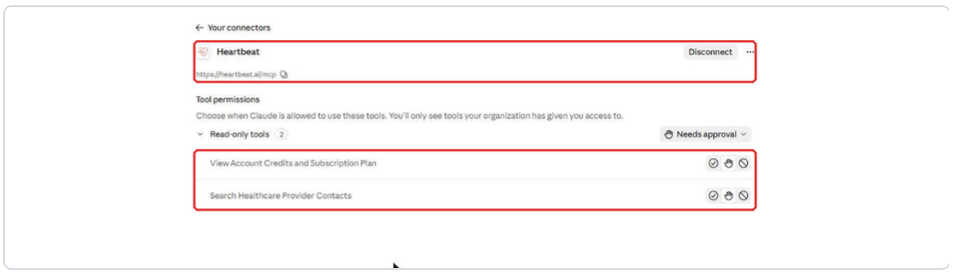
The connected Heartbeat connector with its two tools. -
08
Use it in a chat
Start a new chat, click + > Connectors and make sure Heartbeat is switched on. Then ask, for example:
- “Show my Heartbeat account info”
- “Find cardiologists within 25 miles of Houston, TX”
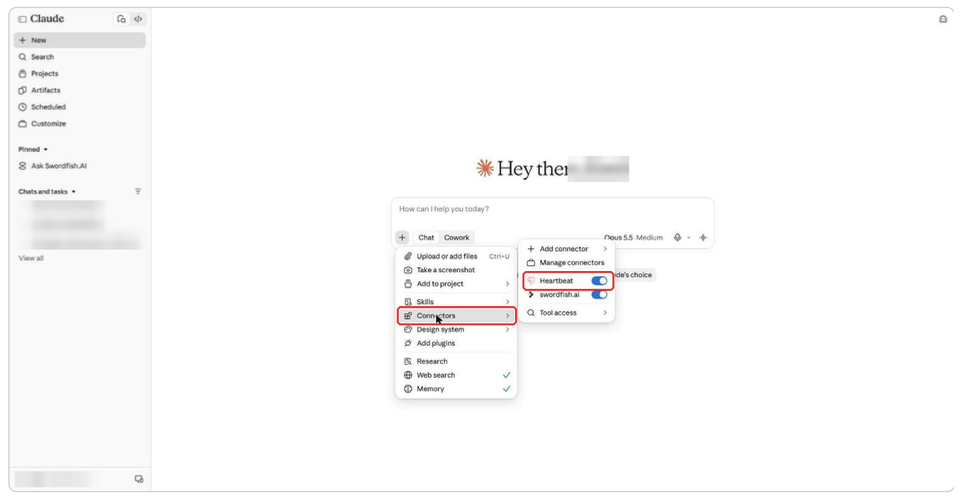
Switch Heartbeat on under + > Connectors in a new Claude chat.


You stay in control
Your password is only entered on heartbeat.ai. Claude and ChatGPT never see it.
Emails and phone numbers are only added when you ask for contact details, and they use credits.
In Claude, set each Heartbeat tool to Always allow, Needs approval or Blocked.
Troubleshooting & FAQ
About Heartbeat MCP
ChatGPT
Claude
Account and credits
Still stuck? Email contact@heartbeat.ai or read the help center article.
Bring Heartbeat into your next chat.
Copy the server URL and connect Claude or ChatGPT in about 2 minutes.
No Heartbeat account yet? Request a free account.