dentist contact database
By Ben Argeband, Founder & CEO of Heartbeat.ai — Practical, includes owner-targeting scripts.
What’s on this page:
Who this is for
This is for dental recruiters and DSOs sourcing dentists and practice owners who need conversations, not just names. Dental outreach breaks down because dentists are often chairside, office lines are gatekept, and the decision-maker changes by use case (owner vs associate).
If you’re trying to move fast, the win is routing each outreach to the right lane (owner lane vs associate lane), using direct channels when available, and running clean opt-out suppression so you don’t burn your brand.
Quick Answer
- Core Answer
- Use a dentist contact database to separate practice owners from associates, prioritize direct channels, and run compliant outreach with role-confirmation before pitching practice-level decisions.
- Key Statistic
- Heartbeat observed typicals: Sole proprietor filtering is a practical routing signal to prioritize practice-level decision-makers (owners) when your outreach requires an owner decision.
- Best For
- Dental recruiters and DSOs sourcing dentists and practice owners.
Compliance & Safety
This method is for legitimate recruiting outreach only. Always respect candidate privacy, opt-out requests, and local data laws. Heartbeat does not provide medical advice or legal counsel.
Framework: The “Owner vs Associate” Targeting: who actually decides
In dental, “find a dentist” is rarely the hard part. The hard part is finding the dentist who can say yes to the specific decision you’re asking for.
- Owner decisions: practice-level choices (partnerships, affiliation conversations, staffing vendors, major operational changes).
- Associate decisions: personal career moves (new role, schedule change, relocation).
The trade-off is… if you narrow to owners only, you’ll contact fewer people, but you’ll waste fewer touches on “not my decision” replies.
Step-by-step method
Step 1: Write down the decision you need (before you pull contacts)
Put one line in your req intake or campaign brief:
- “This outreach requires a practice owner decision.”
- or “This outreach is for dentist candidates (associates/partners).”
This prevents your team from celebrating activity that can’t convert.
Step 2: Build your search around ownership signals (not just specialty)
Because dentists often own practices, ownership is a practical routing signal. If your ask is practice-level, start with ownership filters such as sole proprietor to target decision-makers.
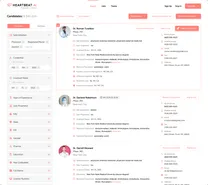
Required visual note: Add a “filters screenshot” note showing the ownership/sole proprietor filter and the contact channel fields (phone/email) used for outreach.
| Filter / field | Use it when | What it changes operationally |
|---|---|---|
| Sole proprietor (ownership signal) | You need a practice-level decision-maker | Routes reps into the owner lane and reduces “not my decision” outcomes |
| Geography (city/region) | You have a defined market | Keeps outreach relevant and improves reply quality |
| Practice setting / affiliation (if available) | You need to avoid mismatched environments | Prevents pitching the wrong model to the wrong practice type |
| Direct mobile number (output field) | You need speed to conversation | Enables direct calling without relying on office-line gatekeepers |
| Email + suppression flags (output fields) | You run sequences | Protects deliverability and enforces opt-out across tools |
Step 3: Pull the right output fields (so reps can actually work the list)
A usable dentist contact database export should support a rep’s next action in one screen. At minimum, include:
- Identity fields (name, location, practice name when available)
- Role/ownership signal (owner/associate indicators; sole proprietor where applicable)
- Direct channels when available (including a direct mobile number)
- Suppression fields (prior opt-out, wrong person, do-not-contact flags)
Step 4: Choose channels that match chairside reality
Dentists are often in procedures. Your first touch should be short and respectful, designed to earn a second step.
- Phone: best for speed when you have a direct line; office lines are commonly gatekept.
- Email: best for context and credibility; treat deliverability as a measurable constraint.
- Text: only where appropriate and lawful; keep it minimal and include opt-out language.
Step 5: Run a two-lane cadence (owner lane vs associate lane)
Owners and associates respond to different prompts. Build two lanes and keep them separate:
- Owner lane: confirm they’re the decision-maker, then ask for a short slot.
- Associate lane: confirm interest and timing, then move to a quick screen.
Step 6: Start with a preview-first workflow
If you’re evaluating sources or list quality, don’t commit blind. Use a workflow where you can start free search & preview data, then validate role accuracy and reachability before scaling.
CTA: start free search & preview data.
Diagnostic Table:
| Use case | Who you should target first | Best first message | Best first channel | What to log in CRM |
|---|---|---|---|---|
| Affiliation / acquisition intro | Practice owner (start with sole proprietor where applicable) | Role-confirm + short slot request | Direct phone, then short email | Owner confirmed? (Y/N). Preferred channel. Opt-out? |
| Associate placement | Dentist candidate (associate/partner) | Interest + timing check | Phone + email | Open to move? Timeline. Must-haves. |
| Coverage / staffing gap | Practice owner (or delegated ops lead) | Problem/need confirmation + next step | Phone first | Need type. Start window. Credentialing owner. |
| Reactivation of cold accounts | Practice owner | Permission-based re-intro | Email first, then one call attempt | Prior history. Opt-out status. Next follow-up date. |
Weighted Checklist:
Use this to decide whether a record is ready for outreach. Score each item 0–2 and work the highest totals first.
- Decision fit (0–2): Does your use case require a practice owner decision or a dentist candidate decision?
- Ownership signal (0–2): Is there an owner indicator such as sole proprietor when you need a decision-maker?
- Direct channel (0–2): Is there a direct channel available (including a direct mobile number)?
- Suppression clean (0–2): No prior opt-out or do-not-contact flags.
- Script match (0–2): Do you have the correct lane script (owner vs associate) ready?
Routing rule: If Ownership signal is 0 and you need an owner decision, do role-confirmation first (template below) instead of pitching.
Outreach Templates:
Template 1 — Owner lane (voicemail)
“Hi Dr. [Last], this is [Name]. Quick question—are you the practice owner for [Practice/City]? If yes, I’d like to ask one thing about [topic] and see if it’s relevant. If not, who should I speak with? My number is [number].”
Template 2 — Owner lane (email)
Subject: Quick question for the practice owner
“Dr. [Last]—I’ll be brief. Are you the practice owner for [Practice/City]? If yes, can we grab 10 minutes this week for one question about [topic]? If not, who’s the right person? Reply ‘no’ anytime and I’ll opt you out.”
Template 3 — Associate lane (email)
Subject: Dental role in [Area] — quick timing check
“Dr. [Last]—reaching out on a [role type] option in [area]. Are you open to a quick call to see if it fits your schedule and goals? If you prefer no outreach, reply ‘no’ and I’ll opt you out.”
Template 4 — Role-confirmation micro-touch (when ownership is unclear)
“Dr. [Last], quick check so I route this correctly—are you currently an owner/partner, or practicing as an associate? If you prefer no outreach, tell me and I’ll opt you out.”
Common pitfalls
- Pitching practice-level decisions to associates: you’ll get polite replies and no movement.
- Over-dialing office lines: gatekeepers protect chair time; volume doesn’t fix channel mismatch.
- Front desk routing mistakes: if you do call an office line, ask for the best time/channel to reach the dentist and keep it respectful. Don’t pressure staff to bypass internal rules.
- Not operationalizing opt-out: if suppression isn’t enforced across tools, you will re-contact people who asked you not to.
- Confusing “found” with “reachable”: a record isn’t a conversation; track reachability metrics.
Uniqueness hook: DECISION_TREE worksheet (owner vs associate routing)
Copy/paste this into your intake form so every campaign routes correctly:
- Q1: What decision are we asking for?
- If practice-level (affiliation, acquisition, staffing vendor, partnership) → target practice owner.
- If employment mobility (new role, schedule change) → target dentist candidate (associate/partner).
- Q2: Do we need a signer/approver in the first conversation?
- If yes → start with sole proprietor filtering, then expand if volume is too low.
- If no → you can include associates, but keep messaging lane-specific.
- Q3: Do we have a direct channel?
- If yes (direct phone/email) → run the lane cadence.
- If no → send role-confirmation email first; avoid repeated office-line dialing.
- Q4: Any opt-out or do-not-contact?
- If yes → suppress across CRM, dialer, and email tool immediately.
Required visual note: Add an owner-vs-associate decision tree graphic that mirrors Q1–Q4 above.
How to improve results
Improvement comes from separating lanes, measuring reachability, and tightening suppression. Measure this by… tracking lane-specific outcomes weekly and auditing suppression so opt-outs don’t re-enter sequences.
Metric definitions (use these consistently)
- Connect Rate = connected calls / total dials (per 100 dials).
- Answer Rate = human answers / connected calls (per 100 connected calls).
- Deliverability Rate = delivered emails / sent emails (per 100 sent emails).
- Bounce Rate = bounced emails / sent emails (per 100 sent emails).
- Reply Rate = replies / delivered emails (per 100 delivered emails).
- Ownership (definition): for this workflow, ownership means the dentist is a practice owner (often a sole proprietor) who can approve practice-level decisions.
Measurement instructions
- Split your sequences: Owner lane and Associate lane.
- Tag outcomes on first meaningful interaction: owner confirmed / associate confirmed / wrong person / opted out.
- Track weekly by lane: Connect Rate (per 100 dials), Answer Rate (per 100 connected calls), Deliverability Rate (per 100 sent emails), Reply Rate (per 100 delivered emails).
- Audit suppression weekly: confirm opt-outs are removed from future sends and dial lists across CRM, dialer, and email platform.
- Role-accuracy audit monthly: sample a set of “owner” records and confirm they are decision-makers for practice-level decisions; adjust filters/scripts based on misses.
Workflow upgrades that actually help
- Shorten the ask: owners respond to a clear next step (a short slot) more than a long pitch.
- Stop office-line escalation: after two gatekept attempts, switch channels or move to nurture.
- Make suppression permanent: opt-out and wrong-person flags should never re-enter sequences.
Legal and ethical use
Use a dentist contact database for legitimate recruiting outreach only. Build your process around:
- Consent: follow applicable rules for your region and channel (email, phone, text).
- Opt-out: provide a clear opt-out path and honor it quickly across all systems.
- Data minimization: store only what you need for recruiting workflow.
- No guarantees: do not represent any dataset as a guaranteed owner list.
If you’re targeting sole proprietor dentists as decision-makers, treat this as an operational filter for outreach relevance, not tax or legal classification. This is not tax or legal advice.
Evidence and trust notes
Baseline provider identifiers (including for dentists) can be cross-referenced via the NPPES NPI system: NPPES (CMS) NPI. Use it to validate identity fields; it does not guarantee reachability or preferred contact channels.
For how Heartbeat approaches data quality, sourcing ethics, and suppression, see: Trust & methodology for contact data.
Related guides:
FAQs
How do I use a dentist contact database to reach practice owners (not just associates)?
Route by decision type. If it’s practice-level, start with ownership signals like sole proprietor, confirm they’re the owner in the first touch, then ask for a short slot.
What should I track to know if my outreach is working?
Track lane-specific metrics: Connect Rate (connected calls / total dials, per 100 dials), Answer Rate (human answers / connected calls, per 100 connected calls), Deliverability Rate (delivered emails / sent emails, per 100 sent emails), and Reply Rate (replies / delivered emails, per 100 delivered emails).
How do I operationalize opt-out so we don’t re-contact dentists?
Use one suppression source of truth (usually your CRM), sync it to your dialer and email tool, and require reps to log opt-outs immediately. Audit weekly to confirm suppressed contacts are not callable or emailable.
Is it okay to text dentists?
It depends on your local rules and your compliance posture. If you do, keep it minimal, identify yourself, and include opt-out language (for example, “Reply STOP to opt out”).
What’s the safest way to start if I’m evaluating data quality?
Use a preview-first workflow: start free search & preview data, spot-check role accuracy (owner vs associate), then scale only after suppression and verification steps are working.
Next steps
- Pick your lane: owner decision vs dentist candidate.
- Build a small test pull and validate role accuracy and reachability.
- Enforce suppression across CRM, dialer, and email tool.
- Run the workflow in Heartbeat.ai: start free search & preview data.
About the Author
Ben Argeband is the Founder and CEO of Swordfish.ai and Heartbeat.ai. With deep expertise in data and SaaS, he has built two successful platforms trusted by over 50,000 sales and recruitment professionals. Ben’s mission is to help teams find direct contact information for hard-to-reach professionals and decision-makers, providing the shortest route to their next win. Connect with Ben on LinkedIn.