


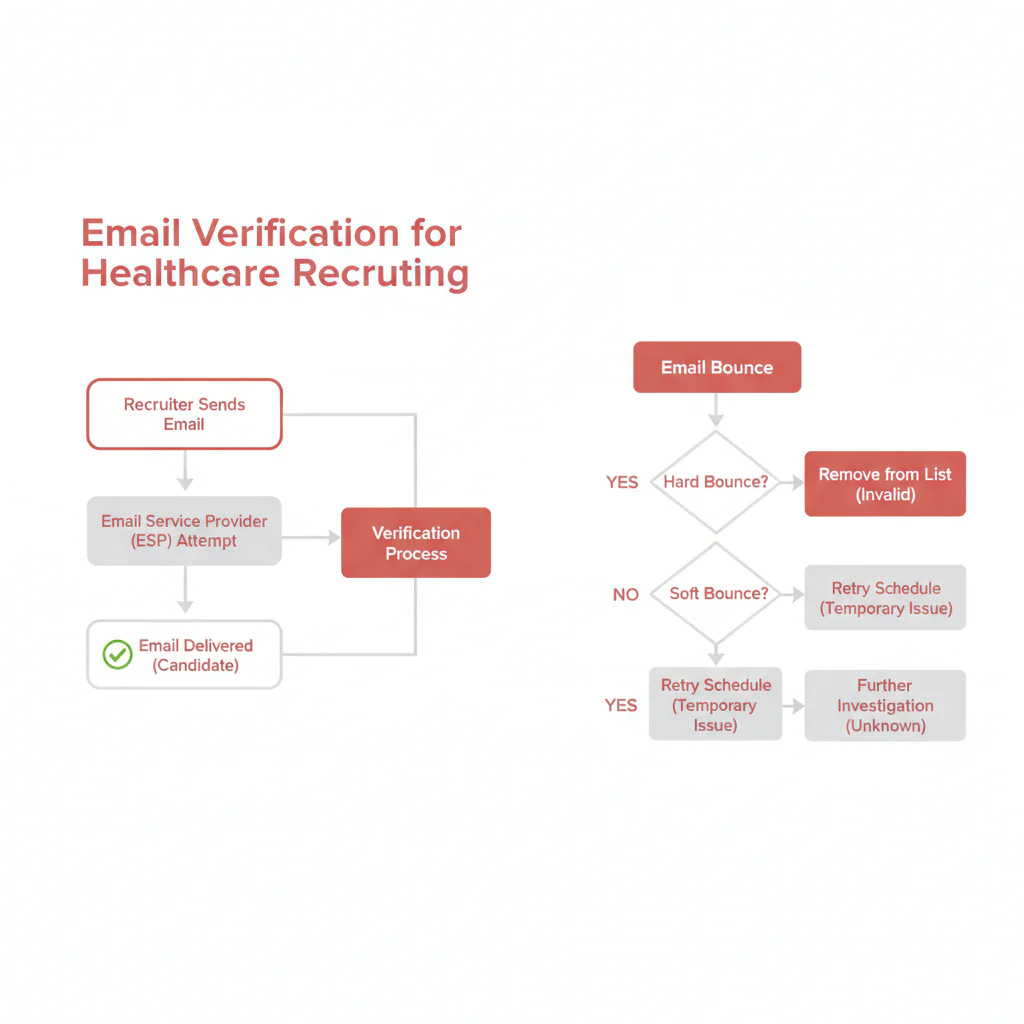
Email verification for healthcare recruiting
Ben Argeband, Founder & CEO of Heartbeat.ai — Non-technical, step-by-step, with templates and bounce triage.
Healthcare recruiting email outreach fails in predictable ways: hospital security gateways are strict, group practices route messages through shared inboxes, and admins will hit “report” if your note looks like bulk mail. Email verification for healthcare recruiting is the fastest way to cut obvious non-deliveries, protect your sending domain, and keep your pipeline moving.
What’s on this page:
Who this is for
Recruiters with bounce-heavy campaigns who need cleaner lists—especially if you’re inheriting an old spreadsheet, scaling outreach, or sending into health systems with aggressive filtering.
Quick Answer
- Core Answer
- Verify addresses, segment by risk, suppress failures and opt-outs, then send in waves and refresh regularly to reduce bounces and protect your sending domain.
- Key Insight
- Verification reduces bounces but doesn’t guarantee replies; segmentation plus a suppression list is what protects your domain while you learn what converts.
- Best For
- Recruiters with bounce-heavy campaigns who need cleaner lists.
Compliance & Safety
This method is for legitimate recruiting outreach only. Always respect candidate privacy, opt-out requests, and local data laws. Heartbeat does not provide medical advice or legal counsel.
Framework: The Delivery Workflow: Verify → Segment → Send → Learn → Refresh
- Verify: reduce obvious non-deliveries before you send.
- Segment: separate low-risk from high-risk so one bad slice doesn’t degrade the whole program.
- Send: start with the safest segment and expand intentionally.
- Learn: use bounce patterns, complaints, and replies to adjust targeting and cadence.
- Refresh: re-check and re-suppress on a schedule because healthcare orgs change domains and roles constantly.
The trade-off is… verification helps you avoid preventable bounces, but it can’t make a clinician interested. Relevance and timing still do the heavy lifting.
Step-by-step method
Step 1: Define the metrics (so the team measures the same thing)
Use these definitions consistently across your ESP/CRM reports:
- Deliverability Rate = delivered emails / sent emails (per 100 sent emails). “Delivered” means the receiving server accepted the message.
- Bounce Rate = bounced emails / sent emails (per 100 sent emails). A bounce is a non-delivery report from the receiving server.
- Reply Rate = replies / delivered emails (per 100 delivered emails). Use delivered as the denominator so bounces don’t distort the rate.
If you also run phone alongside email, keep these definitions straight:
- Connect Rate = connected calls / total dials (per 100 dials).
- Answer Rate = human answers / connected calls (per 100 connected calls).
Step 2: Normalize your list before verification (prevents false failures)
- Lowercase emails; trim spaces; remove trailing punctuation.
- Split full name into first/last; keep credentials in a separate field.
- Standardize domains (e.g., “health-system.org” vs “healthsystem.org”).
- Deduplicate on email; keep the most recent source and specialty/location fields.
If you’re still building the list, start with a sourcing workflow that reduces guesswork, then verify. See how to find a physician’s email address.
Step 3: What verification checks (and what it can’t)
Verification is about reducing preventable non-delivery. In practice, it typically checks:
- Address format (basic structure)
- Domain readiness (whether the domain can receive mail)
- Mailbox-level signals (whether the address is likely to accept mail)
Verification cannot guarantee inbox placement, interest, or that a shared inbox routes to the clinician. Treat it as a risk-reduction step, not a conversion step.
Step 4: Verify and label outcomes (don’t just keep/delete)
Your verification output should be actionable. At minimum, label each record:
- Deliverable: likely to accept mail.
- Risky: may accept mail, but higher chance of bounce or filtering (role accounts, catch-all domains, etc.).
- Undeliverable: known invalid or known to bounce.
- Unknown: cannot be confidently classified.
In Heartbeat.ai, you’re not just checking syntax—you’re working with contact data that is deliverability tested (meaning we validate address-level signals to reduce non-delivery risk before you send) so you can make safer send decisions.
Step 5: Map verification results into your CRM/ESP (so it stays enforced)
If verification lives in a one-off export, it won’t protect you next week. Store the results as fields/tags so suppression and segmentation are automatic:
- verification_status: Deliverable / Risky / Undeliverable / Unknown
- suppression_flag: true/false (set true for undeliverable, complaints, and opt-outs)
- suppression_reason: hard bounce / soft bounce repeat / complaint / opt-out / do-not-contact
- last_verified_date: date of the most recent verification pass
This is what makes a suppression list real: it becomes a rule in your workflow, not a note someone forgets to apply.
Step 6: Build and enforce a suppression list (domain protection)
Segmenting + suppression protects sender reputation. Your suppression list should include:
- Undeliverable addresses from verification
- Prior hard bounces from your ESP/CRM
- All opt-outs (global, not per-campaign)
- Known “do not contact” entries from compliance review
Make suppression a system, not a spreadsheet. If you’re inheriting a file, also review how to clean a physician email list for deduping, stale record handling, and segmentation.
Step 7: Handle shared inboxes and role accounts intentionally
Healthcare organizations often use shared inboxes (clinic coordinators, credentialing, scheduling). These can be deliverable but high-complaint if your message looks like bulk outreach. Rules I use:
- If the address is clearly a role/shared inbox, use a gatekeeper-safe template and ask for the preferred routing.
- If you get an opt-out from a shared inbox, suppress it globally.
- If a shared inbox complains, treat it as a stop signal and tighten targeting immediately.
Step 8: Send in controlled waves (learn without burning the domain)
Don’t send to the whole file at once. Start with the safest segment (deliverable + best-fit specialty/location), review bounces and complaints quickly, then expand.
- Wave 1: Deliverable + best-fit segment
- Wave 2: Deliverable + adjacent segment (broader geography or similar specialty)
- Wave 3: Risky/Unknown only if the search requires it and you can monitor closely
Step 9: Learn, then refresh (trigger-based, not calendar-based)
Refresh verification and re-apply suppression whenever any of these triggers happen:
- You import a new segment or source from a new system
- You change sending domains or mail infrastructure
- A health system merges, rebrands, or changes domains
- You see a spike in bounces or complaints after a wave
When bounces happen, treat them as signals. Your goal is to prevent repeat failures and keep your suppression list current.
Diagnostic Table:
| Symptom | Likely cause | What to do next | What to avoid |
|---|---|---|---|
| Bounce Rate spikes right after importing a new segment | Stale addresses, wrong domains, missing suppression list | Re-verify the new segment; apply suppression list; resend only to Deliverable | Re-sending to the same bounced addresses |
| High Deliverability Rate, low Reply Rate | Message-market mismatch; wrong role; timing | Tighten targeting; rewrite the first sentence; add a call/SMS step for high-priority candidates | Assuming verification will fix conversion |
| Soft bounces (temporary deferrals) | Recipient server throttling or temporary issues | Pause and retry later; reduce send rate; suppress after repeated soft bounces | Increasing volume to “push through” |
| Spam complaints show up early | Bad targeting, unclear identity/purpose, sending to shared inboxes | Suppress complainers; switch to gatekeeper-safe copy; narrow the segment | Continuing the same cadence without changes |
| Catch-all domains create uncertainty | Domain accepts mail for any address; mailbox may not exist | Send only if high-fit; monitor bounces; prioritize alternate channels | Assuming “deliverable” equals “right person” |
Weighted Checklist:
Use this to decide whether a segment is safe to send today. Score each item and total it.
| Item | Weight | Pass criteria |
|---|---|---|
| Verification status | 30 | Only “Deliverable” included; “Risky/Unknown” excluded or isolated |
| Suppression list applied | 25 | Hard bounces + opt-outs + do-not-contact suppressed globally |
| Targeting fit (specialty, geography, role) | 20 | Clear match to the req; no broad “spray” segment |
| Message compliance basics | 15 | Clear identity and purpose; respectful tone; opt-out language included |
| Send control | 10 | Wave-based sending with review checkpoints |
Interpretation: 85–100 = send now; 70–84 = send only to the safest subset; <70 = fix inputs first.
Outreach Templates:
Template 1: First-touch email (direct, clinician-respectful)
Subject: {Specialty} role in {Region} — quick question
Hi Dr. {LastName} — I’m {YourName}, recruiting for a {Specialty} role in {City/Region}. Are you open to a brief call this week, or should I send details by email?
If you’re not the right person for this, reply “no” and I’ll update my list. If you prefer not to receive outreach from me, reply “opt out.”
— {YourName}
Template 2: Gatekeeper/shared inbox (reduces complaints)
Subject: Recruiting message for Dr. {LastName}
Hello — I’m recruiting for a {Specialty} role in {Region} and trying to reach Dr. {LastName}. If there’s a preferred contact path (email or scheduling), please point me the right way.
If this inbox shouldn’t receive recruiting outreach, reply “opt out” and I’ll suppress it.
— {YourName}
Template 3: After a temporary delivery issue (clean retry)
Subject: Best email for you?
Hi Dr. {LastName} — my note may not have reached you due to a temporary delivery issue. Is {Email} the best address, or is there another you prefer?
If you’d rather not receive messages from me, reply “opt out” and I’ll stop.
— {YourName}
Common pitfalls
- Assuming verification equals conversion. Verification reduces bounces, but replies come from fit, timing, and a message that respects the clinician’s context.
- Not enforcing suppression globally. If you keep re-sending to known failures or opt-outs, you’re training filters to distrust you.
- Mixing risky and safe segments. Isolate “Risky/Unknown” so they can’t drag down your core segment.
- Sending clinician-style copy to shared inboxes. Admins and coordinators need routing context; otherwise complaints spike.
- Over-sending from a new domain. Even with verified addresses, aggressive volume can trigger throttling and complaints.
Failure story (what this looks like in real recruiting): A team I worked with sent a clean-looking list into a large health system and got early complaints. The addresses were mostly shared inboxes (credentialing and clinic coordination), so the message landed with admins who didn’t recognize the sender and flagged it. The fix was simple: suppress the shared inboxes that opted out or complained, isolate role accounts into their own segment, and use the gatekeeper template that asks for the preferred routing. Replies improved because the message started reaching the right person instead of the wrong inbox.
How to improve results
Bounce triage decision tree (DECISION_TREE)
Use this decision tree to decide whether to suppress, retry, or re-source. It’s designed to protect your domain while keeping speed.
| Event | Classify as | Action | Suppression rule |
|---|---|---|---|
| Hard bounce (user unknown / no such mailbox) | Hard bounce | Suppress immediately; re-source alternate email or channel | Add to suppression list permanently |
| Soft bounce (temporary failure / deferred) | Soft bounce | Retry later with lower send rate; if repeats, suppress and re-source | Suppress after repeated soft bounces from same address |
| Spam complaint (recipient reports spam) | Complaint | Suppress immediately; review targeting + copy; check if role/shared inbox | Add to suppression list permanently |
| Delivered but no response after 2 touches | Non-response | Switch channel (call/text) or change angle; don’t keep hammering email | No suppression needed unless requested |
Measurement instructions (required)
Measure this by… running every campaign with a simple scorecard by segment (deliverable vs risky, health system vs private practice, specialty, geography):
- Deliverability Rate = delivered emails / sent emails (per 100 sent emails).
- Bounce Rate = bounced emails / sent emails (per 100 sent emails). Track hard vs soft separately if your ESP provides it.
- Reply Rate = replies / delivered emails (per 100 delivered emails).
After each wave, check complaint signals and bounce patterns before expanding. If you send into Gmail-heavy segments, use Google Postmaster Tools to monitor domain reputation and complaint indicators; if they worsen, pause expansion and tighten segments.
When email is clean but quiet: add a parallel channel
If bounces are controlled but you still need speed, add phone/SMS for your highest-priority candidates. Heartbeat.ai supports workflows that include phone-first sequences, including ranked mobile numbers by answer probability, so you can prioritize who to call first when time matters.
Legal and ethical use
Use verified contact data for legitimate recruiting outreach only. Always respect privacy and honor opt-out requests immediately. This is operational guidance, not legal advice.
- Identity and purpose: be clear who you are and why you’re reaching out.
- Consent and basis: where required, document consent or a legitimate recruiting basis, and keep that record tied to the contact.
- Opt-out: provide a simple opt-out path and process it quickly; keep opt-outs in a global suppression list.
- Minimize sensitive content: avoid including sensitive personal details in subject lines or previews.
- Recordkeeping: keep basic logs of sends, bounces, complaints, and opt-outs so you can correct issues fast.
- Respect boundaries: if someone says stop, stop across channels.
For U.S. requirements, review the FTC’s guidance: CAN-SPAM Act Compliance Guide for Business. For recruiting-specific implementation, see CAN-SPAM for healthcare recruiting.
Evidence and trust notes
These references are the baseline I use for monitoring and operational guardrails:
- Google Workspace: deliverability best practices (use this to sanity-check sending practices and reputation basics)
- Google Postmaster Tools (use this after each wave to watch complaint signals and domain reputation for Gmail)
- Spamhaus consumer resources (use this to understand spam traps and blocklists; don’t use it for fear-based decisions)
- FTC CAN-SPAM Act Compliance Guide (use this to confirm opt-out and identification requirements)
- Heartbeat trust methodology (how we approach data quality, verification, and suppression)
FAQs
Does email verification guarantee replies from clinicians?
No. Verification reduces bounces and protects your sending domain, but replies depend on fit, timing, and message relevance. Use verification to keep access; use targeting and sequencing to drive response.
What should I do with “risky” or “unknown” verification results?
Don’t mix them into your main send. Isolate them into a separate segment, send only if the candidate is high-priority, and watch bounces and complaints closely. If they fail, suppress and re-source.
How do I calculate Bounce Rate correctly?
Bounce Rate = bounced emails / sent emails (per 100 sent emails). Use your ESP’s sent and bounced counts for the same campaign window, and separate hard vs soft bounces when possible.
What’s the difference between Deliverability Rate and Bounce Rate?
Deliverability Rate = delivered emails / sent emails (per 100 sent emails). Bounce Rate = bounced emails / sent emails (per 100 sent emails). Deliverability can be high while replies are low, so track Reply Rate too.
How should I handle opt-outs in recruiting outreach?
Honor opt-out immediately and add the address to a global suppression list so it stays suppressed across campaigns and tools. If you use multiple channels, apply the stop request across channels.
Next steps
- Need to build the list first? Use this physician email sourcing workflow, then verify and segment before sending.
- Already have a file and it’s bouncing? Start with suppression-first cleanup in how to clean a physician email list, then apply the decision tree above to prevent repeat failures.
- Want to operationalize this inside Heartbeat.ai? start free search & preview data and build a verified, segmented outreach list that protects your domain.
About the Author
Ben Argeband is the Founder and CEO of Swordfish.ai and Heartbeat.ai. With deep expertise in data and SaaS, he has built two successful platforms trusted by over 50,000 sales and recruitment professionals. Ben’s mission is to help teams find direct contact information for hard-to-reach professionals and decision-makers, providing the shortest route to their next win. Connect with Ben on LinkedIn.

